

How to Use Gmail as a CRM: Contacts, Tasks and Follow-Ups
Build a practical Gmail workflow with contacts, labels, filters and dated tasks, then see when linked projects and CRM records become useful.
You can use Gmail as a lightweight CRM by keeping contact details in Google Contacts, organizing conversations with labels and creating dated follow-up tasks. It can work for a solo operator willing to update the system manually. Gmail organizes the messages; you still decide what each relationship needs next.
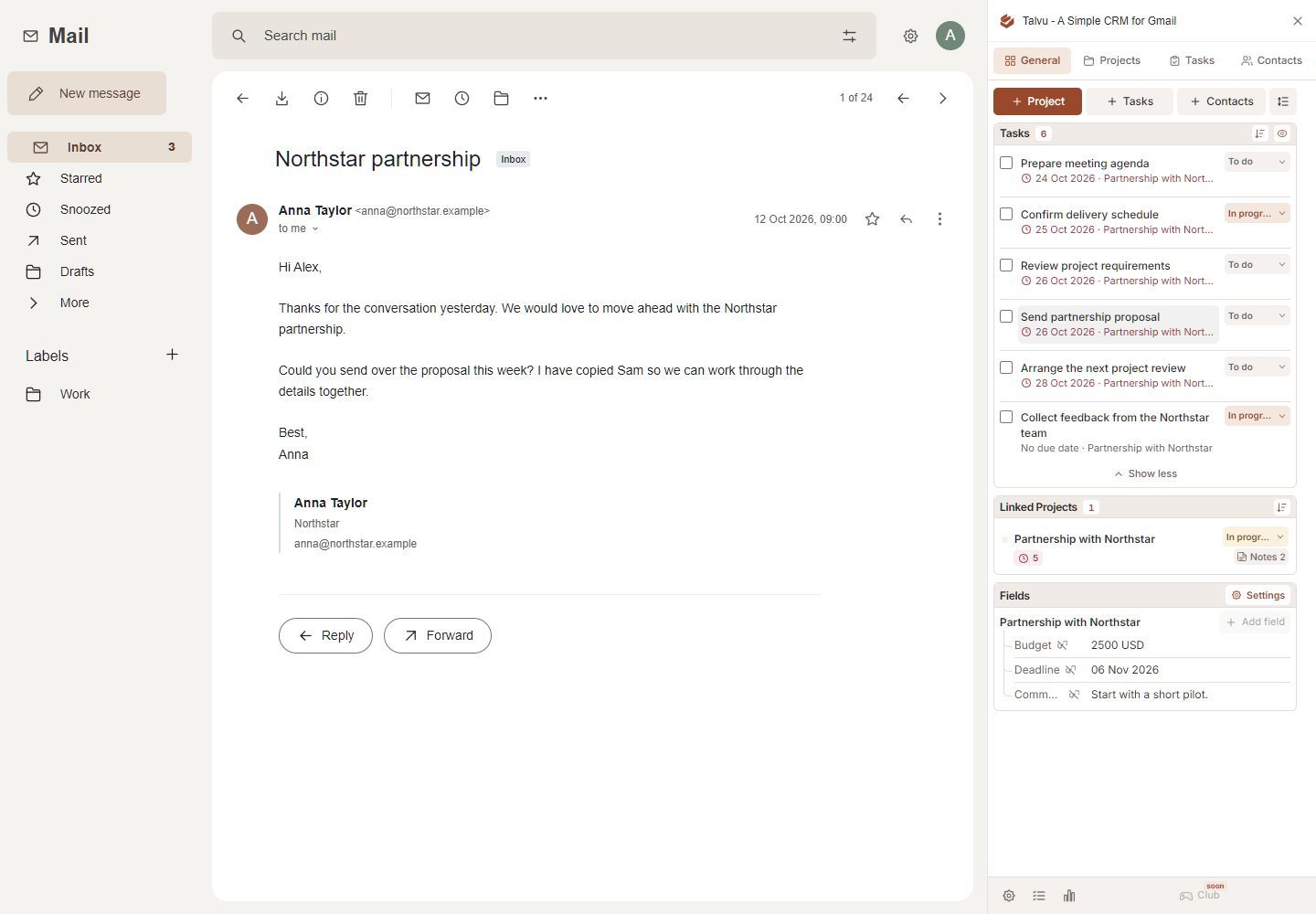
Start with the native workflow below. If you need several conversations, notes and actions grouped around one piece of client work, a CRM that works with Gmail can add that structure.
Set up a manual CRM workflow in Gmail
These instructions use Gmail and Google Contacts in a desktop browser. You do not need a CRM extension for this setup. Google Tasks is a separate Google service available in Gmail's side panel.
1. Save the people you need to follow up with
Open Google Contacts using the same Google account as your Gmail inbox. Choose Create contact → Create a contact, enter the person's details and save. Record the name, email address and phone number you will need when you contact them again. Google's contact creation instructions show the steps.
Do this deliberately for active clients and prospects. An address appearing in autocomplete is not proof that you have created a complete contact: Google can also save people you have emailed under Other contacts.
To group active clients, create a Contacts label such as Active clients, select the relevant people, then use Manage labels → Apply. Google Contacts labels group people. The Gmail labels in the next step organize messages; keep their purposes separate.
2. Give each active conversation a clear status
In Gmail's left sidebar, click the plus beside Labels, enter a name and create it. Start with a small set:
- CRM / New enquiry — you still need to respond.
- CRM / Waiting for client — you have replied and need an answer.
- CRM / Next action — there is work for you to do.
- CRM / Closed — no further action is currently needed.
Select a message and use the Labels button to apply its status. When the situation changes, remove the old status label and apply the new one. A separate client label can collect messages for the same company.
These are your working conventions. Labels do not create deal records or a sales pipeline. They are private to your mailbox. Also check new replies: Google's label documentation says a label applied in conversation view covers existing messages, not new replies automatically.
3. Use filters for predictable sorting
A filter is useful for identifying mail from an established client. It cannot decide whether a proposal has been accepted or a relationship has changed status.
- Click Show search options in Gmail's search bar.
- Enter the client's address in From and run the search to check the results.
- Return to the search options and choose Create filter.
- Select Apply the label, choose the client label and create the filter.
Use a stable client label here rather than a changing status such as Waiting for client. Review the rule if someone starts writing from another address. Google's filter guide notes that a reply is filtered only when it meets the search criteria.
4. Turn every promise into a dated task
An email marked Next action still needs a specific action and date. Open the message, then choose Add to Tasks at the top. If the button is hidden, open More → Add to Tasks. You can also open Tasks on the right and drag the email into the panel. Google's Gmail task instructions cover both methods.
Replace a vague title with something you can complete: Send revised quote to Anna is clearer than Anna email. Add the next step in the details and set a date and, when useful, a time.
Google Tasks supports dated tasks, and tasks with dates also appear in Google Calendar. For desktop alerts, turn on Calendar notifications and select Tasks under My calendars. Use the notification instructions for your device if you rely on mobile reminders. Creating a task does not send a follow-up email to your client.
5. Snooze messages you want to revisit
If a conversation needs attention later, point to it in the inbox, click Snooze and choose a day and time. Gmail temporarily removes it from the inbox and returns it at the chosen time, as described in Google's snooze guide.
Use snooze to bring a message back into view. Use a task to describe work you have committed to doing. For example, snooze a conversation until Monday, but keep Prepare renewal options as a dated task if the preparation must happen first.
6. Review the system before the inbox takes over
Begin the day with your dated tasks. Then check New enquiry, Next action and Waiting for client. For each active conversation, confirm who is expected to act and when you will review it again.
After sending a proposal, for example, change its status to Waiting for client and create Follow up on proposal for the date you choose. If the client replies early, update or complete that task yourself. This manual setup has no rule connecting the meaning of a reply to your next action.
Keep the daily review short enough to repeat. A status nobody updates is less useful than a simple list you can trust.
Keep projects, notes and email history together with Talvu
The manual approach becomes awkward when one client has several conversations and tasks. Talvu uses contacts, projects, tasks and notes beside Gmail, so you can organize work around a project rather than one thread.
Talvu runs through an extension in desktop Chrome, as described in its getting-started guide. Connect the Google address that matches the Gmail tab; a Google Workspace administrator may need to allow access. These are Talvu features added to Gmail.
Link the conversation to the work
Create a project with a name such as Northstar renewal. Open the relevant email and choose Link conversation in the project's Email history block. Talvu's project guide explains that a project can hold several conversations and their eligible replies. Unlinking removes the CRM association, not the Gmail messages.
Create a next action from General, Tasks or the project. Give it a title, date and relevant relationship. Check the Linked email before saving. According to Talvu's task guide, tasks in version 0.1.43 and later can bookmark the open email; in conversation view, that means the latest message. Talvu tasks are separate from Google Tasks and are not automatically added to Google Calendar.
Save details you will need at the next conversation
Open the project's Notes, write in Quick note and choose Add. Keep decisions here, such as which version of a quote the client approved.
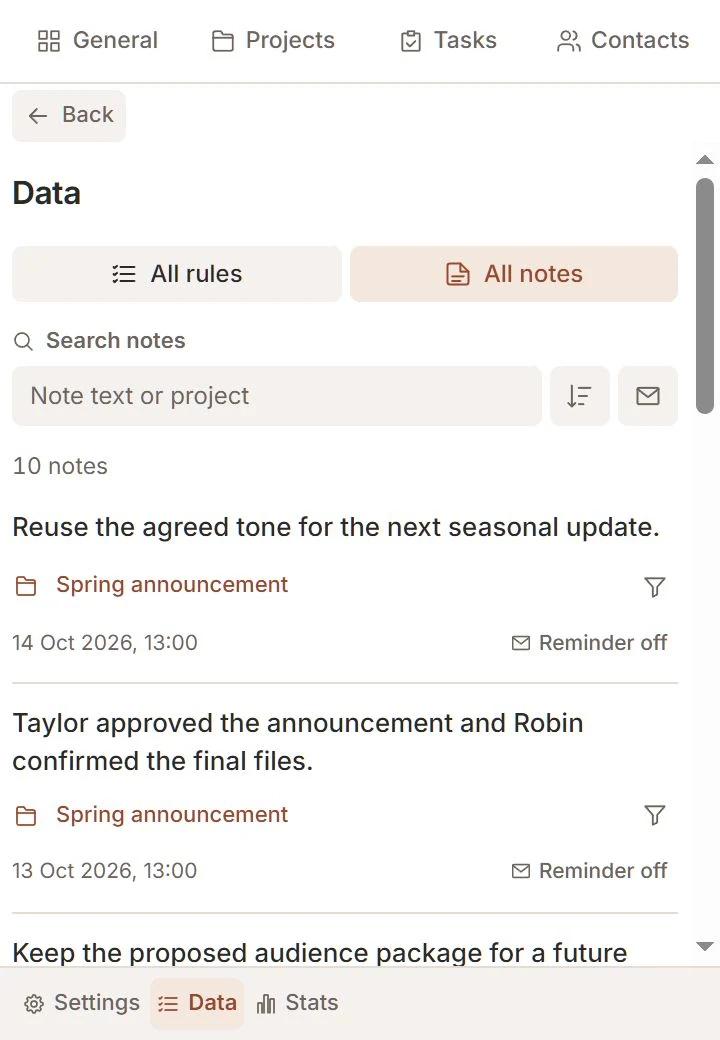
For context that matters when a person writes again, choose Remind on a saved note and select the relevant exact email addresses. The reminder matches new incoming mail after activation. It is an email-triggered prompt, not a scheduled follow-up.
You can also save research from an ordinary website through Talvu's toolbar icon: choose Page, Selected text or Area, then select the account and project. Page saves a link; Selected text saves a quote with its source; Area saves the crop you confirm. This creates a project note, not a task. The Notes and web capture guide documents excluded protected pages and the optional selection button, whose availability depends on the installed build and website permission.
Use a table view for a stage-based sales process
Projects can represent client work or deals. If you prefer managing deals in a table with defined sales stages, Streak provides that view inside Gmail. Each row, called a box, is a record. Stages track progress; columns hold information such as deal value or close date. Its pipeline documentation explains the structure.
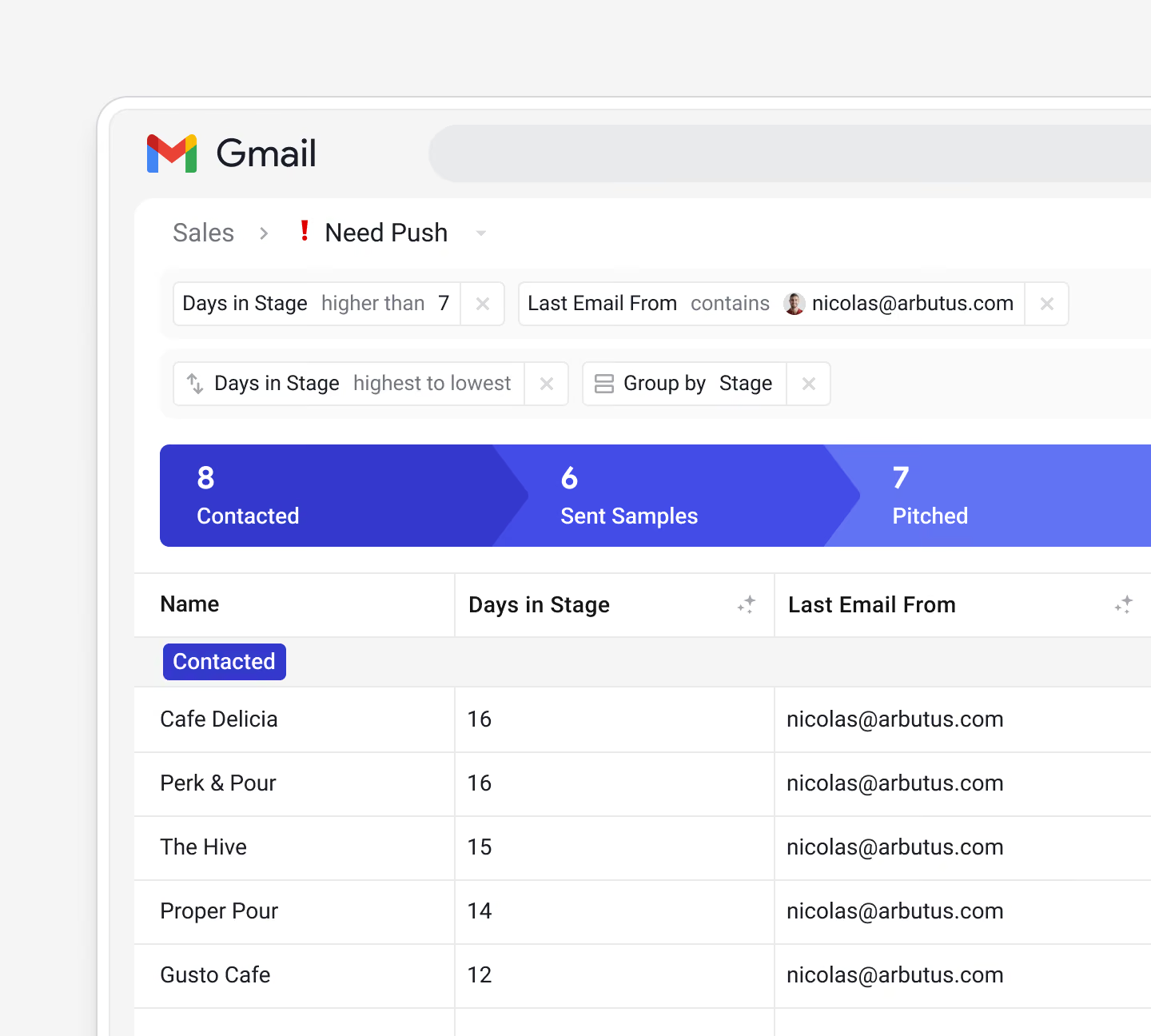
The desktop workflow requires a browser extension; Streak documents installation for Chrome and Safari. Check the sharing rules and plan for the workflow you need before bringing a team into it.
Decide when to move beyond manual Gmail
Add a CRM when maintaining the structure becomes harder than doing the client work: one relationship spans several threads, colleagues need the same status, or you need owners and deal values recorded consistently. Decide which of those problems you need to solve first. A project-based sidebar and a sales pipeline organize different kinds of work.
Compare the actual access, sharing and browser requirements in our Gmail CRM comparison. If budget is the main constraint, check the distinction between free plans and trials in our free Gmail CRM guide. Start with one active client workflow and verify that its contacts, next actions and conversation history are easy to find before expanding the system.