

Gmail Add-on vs Chrome Extension: Choose the Right CRM Integration
Understand the difference between Workspace add-ons, browser extensions and email sync before choosing a Gmail CRM. Covers devices, permissions and workflow limits.
Gmail add-on vs Chrome extension means choosing between a Workspace integration and a browser-installed interface. For a salesperson creating a contact from an open email, either route may fit if the chosen product supports that action; pipeline work and mobile access need separate checks. Choose by the documented devices and workflow, because neither label guarantees a full CRM or automatic email synchronization.
Two installation paths, different integration surfaces
Google describes Workspace add-ons as applications that extend Workspace and connect external services. In Gmail, the supported interface gives you a way to work with another application while viewing mail. You normally find the service through Workspace Marketplace. The vendor determines what its add-on actually does and which contexts it supports.
A browser extension comes through a browser-specific installation route. Chrome’s content-script documentation explains how permitted scripts can read or change page content. That enables controls around an email, a sidebar or a larger CRM view. Check the chosen extension’s site access, account permissions and storage documentation.
Product names can blur the distinction: vendors sometimes use “Gmail integration” for an extension, an add-on, background synchronization or a combination. Identify the actual installation instructions rather than deciding from a marketing label. A sidebar alone does not tell you which architecture is present.
Match the interface to the job
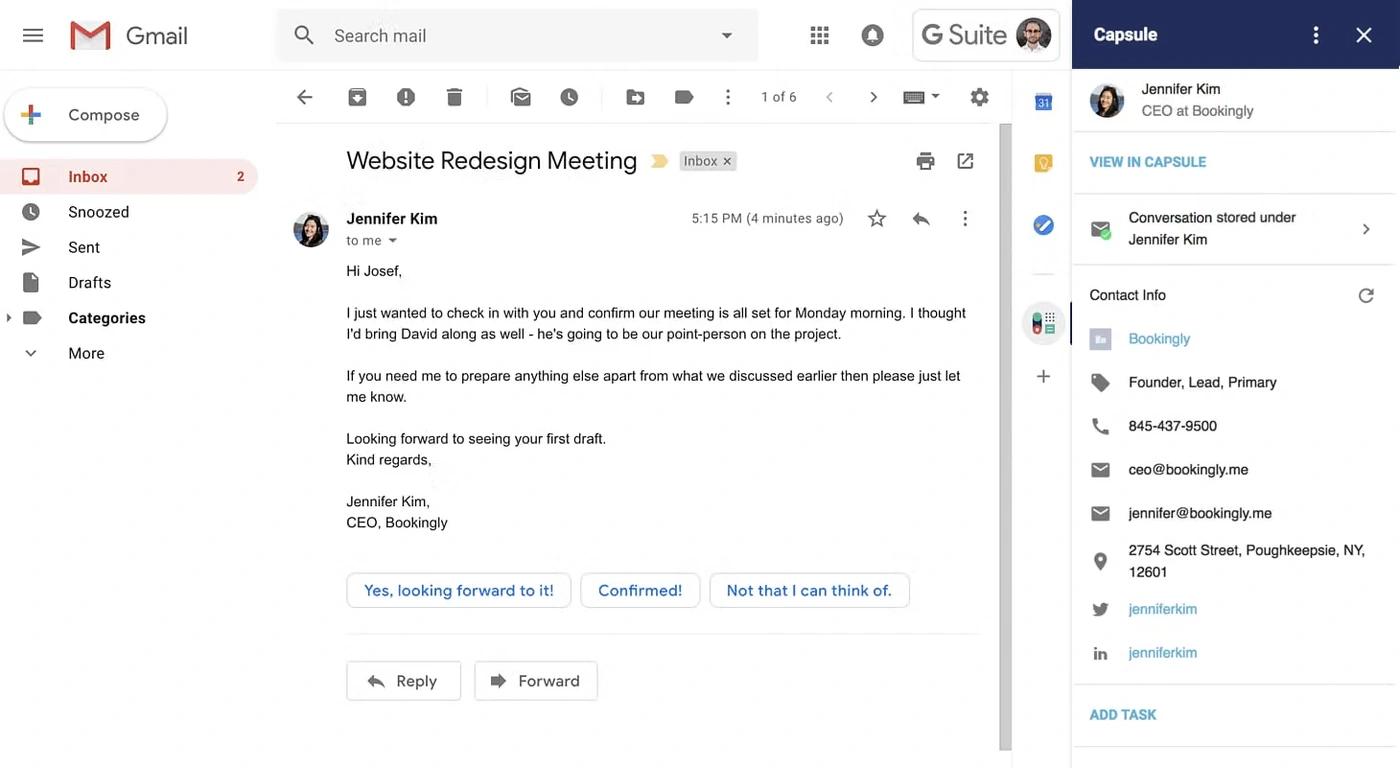
The Capsule Gmail add-on guide offers a concrete example. It documents adding contacts, storing conversations and creating tasks, opportunities and projects. It also states that the add-on works while viewing an existing message, rather than from the message list or compose window. That boundary matters if your routine begins with triaging an inbox or writing a new proposal.
An extension is not automatically a complete replacement for the vendor’s web app. Copper’s guide documents record work in Gmail, while pipeline visualization, reports and account settings remain in the web app. Conversely, a broader embedded workspace can suit someone who wants more process management inside mail. The Streak product guide explains its pipeline model.

Check the exact devices and accounts
Do not read “installed from my phone” as “runs on my phone.” Google’s Chrome extension help describes the phone action as adding an extension to desktop Chrome. A desktop browser extension is not thereby available in the Gmail mobile app. A vendor’s separate mobile app is another interface and needs its own feature check.
Workspace add-ons can have mobile workflows, but verify the product and device rather than promising universal parity. Capsule, for example, documents mobile access from an open conversation. Test the action you need: finding a contact is different from editing every field or viewing a complete pipeline. Work and school accounts can also be subject to administrator installation policies.
Separate the interface from email synchronization
Seeing CRM information beside an email does not prove that all mail is automatically copied into a shared customer history. Ask what starts logging: a user action, a connected inbox, an address rule or another trigger. Then check whether future replies are included, who can see them and what happens to unrelated conversations.
Capsule’s documentation distinguishes selecting a conversation for storage from broader synchronization: once tracked, future messages in that same conversation are stored. Do not generalize that behavior to another product. HubSpot’s installation instructions likewise help identify the actual Gmail extension; installation alone is not evidence that every email is logged.
Review permissions and the exit path
Read the requested browser site access and Google-account permissions in the context of the intended function. Ask where customer records and message copies are stored, who administers the CRM and which export is available. The installation channel does not by itself establish those answers or justify declaring one category universally more secure.
Also distinguish removing the visible integration from ending the service relationship. Google explains how to manage third-party account connections. Separately check the vendor’s account closure, retention and deletion process. Write a simple handover note covering installation, account connection and removal so another administrator can reproduce your setup.
Choose with one realistic workflow
Use a fictional email to create a contact, connect it to an opportunity, add a dated action and find it again on the devices you actually use. Record any switch to the web app and check the required subscription. Choose the integration that completes those actions within your account policies. The Capsule, Copper and HubSpot guides provide product context; the Gmail CRM ranking helps compare the broader shortlist.
If you want to begin without installing an integration, our Gmail setup guide explains the manual alternative.