

Gmail emails not logging in your CRM? Check the route and the record
Trace a missing Gmail message through HubSpot’s logging rule, connected sender, exclusions and record associations. Then repair the missing history without confusing email logging with open tracking.
Gmail emails not logging in your CRM call for checking the route that should capture that particular message. In HubSpot, a connected inbox can now log mail with existing contacts automatically, but the account’s logging rule, recipient record and exclusions still matter. A checked tracking box alone does not establish that the message belongs on the timeline you are viewing.
Imagine sending a revised proposal from Gmail, then opening the client’s deal and finding no email. Before reconnecting anything, keep the sent message open. Note its From address, recipient, subject, time and whether it was a new conversation or a reply. Those details separate a capture failure from a message attached somewhere else.
Start with the account’s actual logging rule
HubSpot’s current contact email logging settings distinguish three routes. Log all emails (from known contacts), the documented default, captures mail to and from existing contacts for users with connected individual work emails. This includes messages sent outside HubSpot, such as from a mobile mail app. An outgoing message to someone who is not yet a contact does not qualify under that rule.
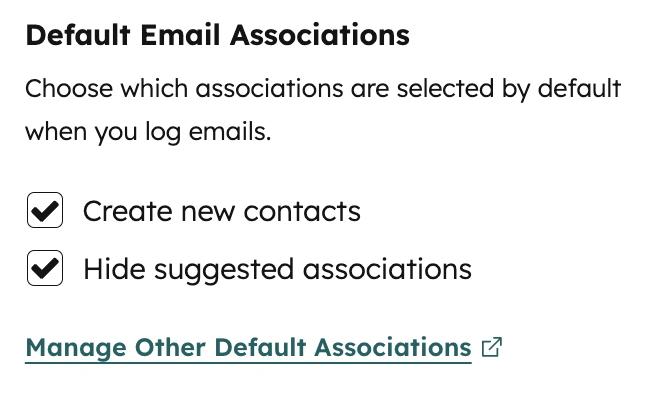
Log replies only is narrower: the incoming message must belong to an already logged thread. The optional Create new contacts from logged emails beta additionally creates contacts from incoming mail; it requires a Super Admin to opt the account in. Check which rule your account uses before applying instructions from an older support discussion.
For the imagined proposal, first search for the recipient’s exact email address in Contacts. An existing company or deal with a similar name is not evidence that this address was already a contact. Then ask an administrator with Account access to check Activities → Email Log & Track.
If the account logs replies only, inspect the thread
Under HubSpot’s reply-only requirements, the original email must have been sent through the CRM or through the connected mail client with the sales extension or add-in and Log selected. The inbox must still be connected when the reply arrives.
A fresh incoming enquiry is not automatically part of that logged thread. A reply with a changed subject also fails the documented same-subject requirement. If replies stopped after a mailbox-provider change, verify the connection uses the actual provider hosting the address. Treat these as conditions of reply-only mode, rather than rules for every HubSpot account.
Check the sender and the exclusions
Look at the message’s real From address. A second mailbox or send-as alias can look familiar in Gmail while differing from the identity your logging route recognizes. For manual BCC logging, HubSpot requires an account user address, connected individual work email or configured alias, along with Personal email access. View-Only seats cannot use this route.
Use the BCC address copied from the intended HubSpot account for a new outgoing message. The forwarding address serves a different purpose: adding a received reply afterward. Forward the individual reply with its generated message header intact. BCC logging alone does not provide open or click tracking.
Review personal and account-wide Never Log exclusions, including blocked domains. A deliberate exclusion should prompt a conversation with its owner, not an attempt to evade it. Where HubSpot’s privacy settings apply, check whether the contact has the required legal-basis value for that logging route.
Find the activity before declaring it missing
Open the exact contact record and inspect its email activity, then compare the deal you expected to show it. Capturing a message and associating that activity with a particular deal are separate decisions. This matters when one client has several open pieces of work.
The Gmail extension’s settings control Log and Track separately and offer association preferences. Super Admin account defaults can override inbox preferences. Also check the HubSpot account selected in the extension: switching it changes the CRM receiving new logged emails and contacts.

If the email exists against the contact but not the proposal’s deal, correct its associations rather than sending the proposal again. Our HubSpot guide places these Gmail tools within the broader CRM; the manual Gmail workflow explains the simpler label-and-task alternative.
Repair the old message, then verify the next one
HubSpot supports retroactive logging from Gmail: open the message, choose Log email to HubSpot, select or create the appropriate contact and choose the associated records. It requires a connected individual work email, the sales extension and Personal email access; View-Only seats are excluded. This repair does not prove that the next message will meet automatic logging rules.
Verify the future route with a harmless sample involving an existing test contact. Keep the sender and account fixed, send once, and inspect the contact and intended deal. If that succeeds, compare the failed message’s identity and thread conditions. If it still fails, give support the record, timestamp and relevant headers through a private support channel.
Change CRM only after you know which behavior you need. The Gmail CRM ranking can help compare options, but a missing association, an intentional exclusion and an unsuitable capture rule each call for a different fix.