

Salesflare CRM for Gmail
Customer timelines and tasks beside Gmail
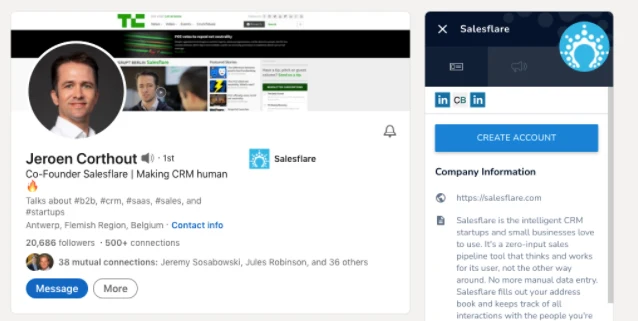
Salesflare CRM for Gmail combines a Chrome sidebar with automatic email capture. View company accounts, contacts and follow-up work beside email. Growth includes personalized campaigns; Pro adds multi-step outreach, custom dashboards and more detailed user permissions.
What is Salesflare?
Salesflare links contacts and sales opportunities to company accounts. Create a few accounts and opportunities, then adjust pipeline stages and follow-up settings before importing the rest of your database.
Contacts collected from email and calendar activity appear in the private My Contacts list. Add them to an account to show them in Customers and share their collected details with the team.
Salesflare interface languages
English, French, German, Italian, Spanish, Dutch, Portuguese, Brazilian Portuguese
Choose an app language in Regional settings. A supported browser language sets the initial default. European and Brazilian Portuguese are included. Gmail sidebar language coverage is unconfirmed.
Who it suits
- B2B teams managing relationships through company accounts
- Gmail users who want automatic email capture and assigned follow-up tasks
Email sync
Sync sent emails from your connected address without logging each message, including emails sent through another email program.
Tasks
Link tasks to accounts, set reminder dates and assign work to colleagues. Review tasks in Today, Upcoming and Completed lists.
Workflow automation
Trigger email workflows when contacts match filters, such as an opportunity stage. Pro adds further email steps and follow-up conditions.
How Salesflare works with Gmail
Install the Gmail sidebar from Applications and Integrations. Open an email from a linked contact to see the account timeline, tasks and files. From the sidebar, manage CRM records, insert saved templates and track email opens or link clicks.
Salesflare syncs sent emails from a connected address even when you use another email program. Email workflows use filtered or manually selected audiences. Continuous workflows also include future contacts when they match your filters.
Getting started
- Connect your customer-facing email account, install the Gmail Chrome sidebar and choose whether to enable email tracking.
- Create company accounts, link contacts and opportunities, and set pipeline stages. Check the timelines before importing more records.
- Connect Google Calendar, set follow-up preferences and assign tasks. Check a campaign's audience and sending window before starting it.
Salesflare features
31 parameters · 8 groupsAccounts
Personal Gmail
Support for a personal Gmail account, not only a Google Workspace organization.
- Available
Google Workspace
Support for Google Workspace Gmail accounts; administrator approval may be required.
- Available
Customer records
Contacts
Create and maintain CRM records for individual people.
- Available
Companies
Store company information and link it to customer work through company records or fields on contacts.
- Available
Custom fields
User-defined fields on CRM records, beyond changing a layout or renaming a status.
- Available
Contact sync
Keep Google Contacts and the CRM in sync in one or both directions. A one-time import or browser capture is not ongoing sync.
- Plan-dependent
Requires a Zapier workflow. The example syncs Google Contacts updates into Salesflare; reverse sync and connector limits depend on that configuration.
Work management
Sales pipelines
Track sales opportunities or deals through defined stages. A general project list is not a sales pipeline.
- Available
Deals
Track sales opportunities with a status or stage. This includes projects used to manage deals.
- Available
Projects
Manage projects through dedicated records or workflows beyond tracking a sales opportunity.
- Not verified
Tasks
Create actionable tasks with an owner, status or due date.
- Available
Notes
Save internal notes associated with a contact, email or CRM record.
- Available
Files
Find, attach or download files linked to CRM records or conversations. Files may be stored in the CRM, linked from cloud storage or retrieved from email.
- Available
Upload files to contacts and opportunities through Files fields, or to accounts through the Files tab. Email attachments also appear in the account's Files tab. Storage quotas and any higher-plan requirement were not verified.
Web capture
Save a webpage link, selected text or an area capture directly from the browser into a CRM note or task. Contact extraction, manual copy and paste, and a URL field alone do not count.
- Not verified
Sidebars support LinkedIn contact/account capture and CRM work beside email. Direct capture of a webpage URL, selected text or screen area into a Salesflare note or task is not verified.
Reminders
Date-based or message-triggered reminders for a follow-up or task.
- Available
Calendar sync
Keep Google Calendar and the CRM in sync. Creating a single event or sharing a booking link is not ongoing sync.
- Available
Built-in sync brings Google Calendar meetings into Salesflare. Sending Salesflare tasks back to Google Calendar requires Zapier.
Email linking
Associate or log email conversations with a contact, project or CRM record.
- Available
Syncs emails from the connected mailbox regardless of the email client used.
Email sync
Automatically update CRM email activity from new Gmail messages or their metadata, including rule-based capture. Copying message bodies or importing old mail is not required. Manual logging alone is not synchronization.
- Available
Syncs emails from the connected mailbox regardless of the email client used.
Email tracking
Track email opens, link clicks or both.
- Available
Email templates
Reusable email message templates or snippets.
- Available
Mail merge
Send personalized email to multiple contacts from one campaign or bulk-send workflow.
- Available
Email scheduling
Schedule an outgoing email for a future send time.
- Available
Schedule email workflows and set sending windows.
Email sequences
Send a scheduled outreach sequence with multiple email steps. A single reminder is not a sequence.
- Plan-dependent
Multi-step email workflows require Pro or Enterprise.
Collaboration
Shared inbox
A shared email workspace where multiple people handle the same conversations.
- Not verified
Team assignment
Assign customer work, records, tasks or conversations to another team member.
- Available
Automation
Workflow automation
Use configurable triggers or rules beyond ordinary email sync, including task or record actions and contextual note reminders. Background sync alone is not workflow automation.
- Available
Growth supports continuous one-step email workflows triggered by contact filters, including opportunity stage. Multiple email steps require Pro or Enterprise; other CRM actions may use the API or external automation.
Data
Reporting
Built-in CRM reporting or dashboards, including documented statistics views.
- Available
Data import
Import CRM records from a file or another supported data source.
- Available
Data export
Export CRM records or reports to a downloadable file.
- Available
API access
Work with CRM data through a documented developer API. A list of third-party integrations is not a developer API.
- Available
Mobile
Mobile CRM
Officially supported CRM access through a mobile app or mobile web interface.
- Available
Gmail mobile
CRM functionality inside the Gmail Android or iOS application, normally through a Gmail add-on.
- Not verified
Pricing and plan requirements
Growth plan
$29/user /month
Growth · Billed yearlyFree trial available
What to check before choosing
- Growth supports single-email campaigns and workflows. Multi-step email sequences require Pro or Enterprise. Custom dashboards and advanced user permissions start on Pro.
- Set up a Zapier workflow for Google Contacts sync in addition to Salesflare's email-based contact collection.
- Google Calendar meetings sync into Salesflare. Sending Salesflare tasks back to Google Calendar requires Zapier; configure the calendars to prevent sync loops.
Salesflare: common questions
Can I keep sending emails from Gmail?
Yes. Use the Chrome sidebar for CRM records and templates. Sent emails from your connected address sync to Salesflare, including messages sent through other email programs.
Does Growth include automated outreach?
Yes. Growth includes personalized campaigns and one-step workflows with filters and sending schedules. Pro adds workflows with multiple email steps.
How does Google Contacts sync work?
Configure Google Contacts sync through Zapier. Salesflare also creates contacts from email and calendar activity.
Compare Salesflare alternatives

Pipedrive
Deal updates from the Gmail side panel


Copper
Contacts, sales and projects linked to Gmail

Talvu
Client projects, notes and tasks inside Gmail
Product documentation
- Salesflare setup and account model
- Gmail sidebar installation and features
- Sending email and automatic capture
- Growth, Pro and Enterprise pricing
- Email workflows, schedules and conditions
- Contact collection and Google Contacts
- Calendar direction and Zapier task workflow
- Task views, reminders and assignment